Tuesday, 11 August 2015

LET YOUR SMARTPHONE BE YOUR THERAPIST; 10 HEALTHY THINGS YOU DIDN'T KNOW YOUR SMARTPHONE COULD DO


www.silent-guru.blogspot.com


Your smartphone can do some pretty unusual things that you’ve probably never even considered. Here are some of the most amazing, out-there tasks your smartphone can help you conquer.


Monitor your heart rate


Monitor heart rateSome newer smartphones, such as the Samsung Galaxy S® 6, have integrated heart rate monitors. But there are also apps that work with a number of smartphones that allow you to measure your heart rate. That includes Instant Heart Rate and Runtastic Heart Rate (both available for Android and iOS)—which can take your workout to the next level.


I use my smartphone every day, often in the first few minutes I wake up. It’s not because I’m addicted (ok, maybe I am a little bit addicted) – it’s because my phone is so darn useful. It tells me the weather. It helps me avoid and navigate around traffic jams. It helps me keep in touch with my friends.
 

Prevent drunk driving
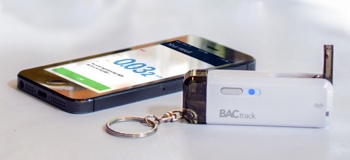
BACtrack Vio BreathalyzerImagine you’re at a house party with a couple close friends. You’ve all shared a glass or two of wine. You feel like you’re probably OK to drive, but it’d be far more responsible to know for sure.
That’s where the new Bluetooth BACtrack Vio Smartphone Breathlyzer comes in. The compact keychain device measures the alcohol present on your breath in just 5 seconds, wirelessly sending your BAC reading to your iOS or Android smartphone. An included app will predict how long it’ll take for your levels to return to 0%, helping you plan whether to call a cab or just “wait it out.”
The BACtrack Vio is available directly from BACtrack and at Amazon.com for just $49.99.
 

Measure your muscles
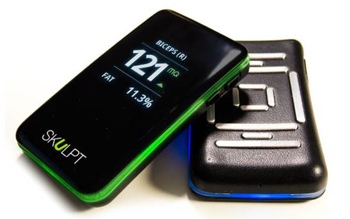
Skulpt Body Fat MonitorAs any health expert will tell you, your bathroom scale isn’t the best way to measure progress at the gym. Muscle weighs more than fat, so gaining the occasional pound or two can be a very good thing.
The Skulpt Aim helps you get a better handle on your fitness by tracking your body fat percentage and the muscle fiber size instead of your weight. It uses small electrodes to measure individual muscle groups and areas and relays the info to your phone, giving you an overall picture of where you’re making progress and where you’re not. The device even comes with an app that recommends exercises that are best for your body’s unique composition.
The Skulpt Aim works with both Android and iOS device and is expect to start shipping in Fall 2014. You can preorder yours at skulpt.me for $169.99, which includes free shipping.


Test for STDs

This smartphone dongle or attachment performs the functions of a lab-based blood test—specifically, an enzyme-linked immunosorbent assay (ELISA)—to test for HIV antibodies and two types of syphilis antibodies. Researchers recently tested it in Rwanda in clinics that work to prevent mother-to-child-transmission and in voluntary counseling and testing centers. With an estimated manufacturing cost of $34 versus the $18,450 typical for ELISA equipment, this device could advance early diagnosis and treatment of these illnesses in developing countries.

Give you an instant eyeglass prescription

Smart Vision Labs created the SVOne, a pocket-sized device that measures refractive errors in the eye and displays a digital eyeglass prescription via smart phone. The company founders envision it for use by doctors with multiple offices or limited space and to serve patients who struggle with traditional machinery or have difficulties with mobility. Where it could really shine, though, is in developing countries where millions lack eye care. The World Health Organization reports that some 90 percent of the world’s visually impaired people live in low-income settings with no eye doctors available and that uncorrected refractive errors are the main cause of moderate and severe visual impairment globally.

Track your cholesterol

Engineers at Cornell University created the Smartphone Cholesterol Application for Rapid Diagnostics, or smartCARD, to test cholesterol levels. Users clamp the device, similar to a credit card reader, over the phone's camera then place a drop of blood, sweat or saliva on a test strip. Insert the strip into the device and voila, a built-in flash illuminates the strip and an app matches the image's color values and shows results on the phone. Currently, the test measures total cholesterol, but the lab is working on measuring LDL ("bad" cholesterol), HDL ("good" cholesterol) and triglycerides, as well as vitamin D levels. This app might make you re-think that double cheeseburger, eventually.

Assess your mental health

Dartmouth University researchers built an Android app that knows the smartphone owner’s state of mind. The app automatically measures sleep duration, number and length of conversations per day, physical activity, locations and time spent there, stress level, eating habits and more—24/7 and without user interaction. Computational method and machine learning algorithms on the phone then assess that data and make higher-level inferences about sleep, sociability, activity, and other behaviors. When 48 students carried phones with the app during a 10-week term, the data significantly correlated with their mental health and academic performance. The app potentially could be used to provide real-time feedback on campus safety and stress levels, identify students at risk, and assess the quality of teaching. It could also be used to monitor mental health, trigger intervention, and improve productivity in the workplace as well.

Help keep you sober

The Addiction-Comprehensive Health Enhancement Support System smartphone app, designed for patients with alcohol use disorder, provides audio-guided relaxation and sounds an alert if individuals stray near a high-risk location, such as a bar they previously frequented. Patients leaving residential treatment who used the app reported an average of 1.37 fewer risky drinking days—meaning more than four standard drinks for men and three for women in a two-hour period—than those not using the app. Patients using the app also were more likely to consistently abstain from alcohol.

Alert you that the milk is spoiled

Researchers at MIT developed sensors that can be read by a smartphone to detect ammonia, hydrogen peroxide, cyclohexanone, and other gases. In the future, it could be used to monitor public spaces for explosives and other harmful chemicals, identify environmental pollutants, or detect food spoilage in warehouses. The sensors also could be used in "smart packaging" that detects spoilage or contamination in the foods you buy. Your next phone message could be from that old milk carton in the refrigerator.

 Improve your hearing aid

This smartphone app could help improve the quality of life of people who use hearing assistive devices, including hearing aids, cochlear implants, and personal sound amplifiers. To remain small and low-cost, these devices typically use not-so-powerful processors. Smartphones, on the other hand, have powerful processors, large memories, microphones, speakers, wireless technology and long-lasting batteries, which can improve the performance of hearing assistive devices. For example, a smartphone could run sophisticated algorithms to distinguish background noise signals and enhance speech.


7 TECHNICAL THINGS YOUR SMARTPHONE CAN DO

Control Other Devices With Infrared


More and more Android phones are being released with infrared blasters, particularly high-end handsets like the Samsung Galaxy S6 and HTC One M9.
If your phone has one of these, in theory it can control anything that responds to infrared signals. You'll likely find that your phone already has an app that makes use of it hidden away somewhere, which can be programmed to control your TV or set-top box.
But even if your phone doesn't have a built-in infrared control, or you just don't get on with the one that is included, you'll find that Google Play has a few available to download, such as the Peel Smart Remote, which is often just re-skinned by manufacturers anyway.


Measure Speed, Height & Distance Of Objects

Measure speed, height and distance of objects Have you wanted to get your hands on a radar gun, like the ones used by baseball scouts or the police? With your smartphone, you can measure the speed of moving objects with the apps Speed Gun (Android™) and SpeedClock (iOS). Great for sporting events like baseball, football or track and field.
There are also a couple of nifty smartphone apps that will measure the height and distance of objects using your camera lens. Android users can check out Smart Measure Pro, while iOS users can try Dot Measure Pro


Diagnose a leaky window

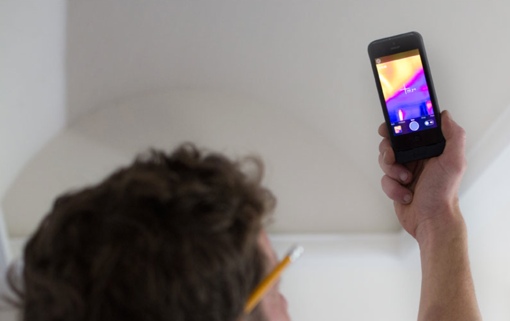
FLIR ONE Thermal Imaging Camera
Turn your phone into a thermal imaging camera with the FLIR ONE add on. It fits onto your phone much like a Mophie Juice Pack does, and translates thermal energy into color images. It’ll show you where cold air is seeping into your house, where pipes need better insulation and even help locate overloaded circuits.
The FLIR ONE Personal Thermal Imager is compatible with both the iPhone 5 and iPhone 5s. It’s available for purchase directly from FLIR.com for $349.00.


Watch over-the-air TV

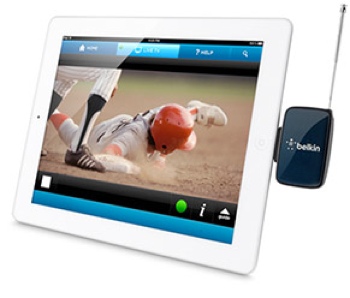
Belkin Dyle TV AntennaYou may already know that your smartphone can connect to streaming video services like Hulu, allowing you to catch your favorite TV shows on the go. But did you know there’s a way to watch your favorite shows live, over-the-air? It’s possible with the Belkin Dyle.
The Dyle is a small antenna device that connects directly to your older iPhone or iPad’s charger port to receive over-the-air digital signals. It’s a great way to catch coverage of the big game while you’re sitting in the stands, pass time while riding the commuter rail or keep the kids busy in the car. Of course, for the device to work, you’ll need to be close to a major metropolitan area to pick up a quality signal.
The 30-pin Belkin Dyle is compatible with the iPhone 4/4S, iPad, iPad 2 and 3rd generation iPad. You can buy yours direct from Belkin or on Amazon.com for $29.99.


Figure out why your check engine light is on

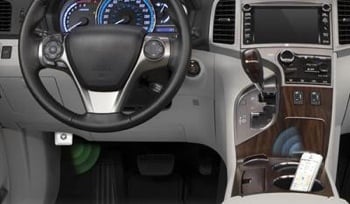
AutomaticWe know how disturbing it gets when the Check Engine light becomes a fairly regular occurrence.
The good news: You and I don’t need to take our cars to an expensive mechanic just to get that light diagnosed – we can do it ourselves using our smartphones and a device like Automatic. It connects directly to your car’s onboard computer, turning Check Engine events into push alerts to your iOS and Android phone. If it’s a minor issue, you may be able to fix it and clear the light yourself, saving a trip to the shop.
Automatic also tracks your driving, giving you feedback on your acceleration and braking habits that can help improve your gas mileage. It can even alert emergency authorities in case of a disabling crash.
Automatic is compatible with most gasoline cars sold in the U.S. since 1996. You can purchase the device directly from Amazon for $79.99.


Pilot a drone

An autonomous drone designed at the Vienna University of Technology navigates using the computing power in your smartphone. Drones are typically steered by humans or signals from an earthbound computer, but this one can negotiate completely on its own without external computer input. The smartphone camera provides visual data and its processor acts as the control center, coded in an app. The designers envision a number of possible uses: the device could be sent into a burning building to look around before firefighters enter, guide people in large and confusing areas, or inexpensively monitor illegal foresting.


Pinpoint where gunshots originated

A team at Vanderbilt University's Institute of Software Integrated Systems turned an Android smartphone into a simple shooter location system. The Department of Defense has sophisticated, expensive sniper location systems that use dedicated sensor arrays to pick up on a firearm’s sonic signature. The smartphone version uses external sensors, about the size of a deck of cards, containing microphones and a processor that detects a gunshot’s acoustic signature and exact time. The processor sends that information to the smartphone, which transmits it to other modules and uses triangulation to pinpoint the origin of the gunshot. The system needs several participants, making it best suited for security teams or similar groups, such as SWAT officers...or lost hunters.


Monday, 10 August 2015

Video Surveillance [CCTV]

Image result for video surveillanceVideo surveillance, commonly known as CCTV.

What is CCTV?

Closed Circuit Television (CCTV) is a system where the circuit in which the video transmitted is closed and all the elements (camera, display monitors, recording devices) are directly connected. This is unlike broadcast television where any receiver that is correctly tuned can pick up and display or store the signal. In the past, these signals would be transmitted to a monitor equipped with a video cassette recorder, but these h
ave been all but totally replaced by digital video recorder (DVR) systems that can store far more video and back up data automatically.

What is CCTV Used For?

Image result for video surveillanceThe most common use of CCTV is in security surveillance systems. They’ve been found for years in areas like large retail shops, banks, and government institutions. Thanks to reduced costs in the manufacture of cameras and video recording equipment, camera systems are becoming more and more commonplace in smaller businesses, and even private homes.

CCTV has become ubiquitous in large cities, along major highways, and areas that host large events. On streets and roads, CCTV is often used in traffic law enforcement, but it’s used to monitor traffic patterns, allowing emergency services to react quickly to accidents and for maintenance departments to better plan necessary construction projects. In hotels, stadiums, and convention centers, CCTV is often used in private television networks, broadcasting sporting events or special events throughout their facilities.

CCTV Cameras

Any camera that broadcasts a signal can be attached to a CCTV system, whether it’s wired or wireless, but they are most often associated with high-end surveillance cameras. Pan/tilt/zoom (PTZ) cameras allow a user to remotely control a camera. The type of lens used will depend on the application and area the camera will be installed

Beyond this list, there are many other names that cameras go by, but most of those are more related to the application in which the unit will be used vs. the type of camera (i.e., front door cam, nanny cam, license-plate cam, elevator cam, etc.). Other references speak to the housings, such as tamper-proof, weatherproof, etc.

Image result for video surveillanceBullet A bullet CCTV camera is a wall-mount or ceiling-mounted unit that is typically designed for indoor use, but can also be fill some outdoor applications. The camera derives its name from its sleek, thin cylindrical shape. Many bullet cameras also tout themselves as being waterproof. The camera is not typically designed to have pan/tilt/zoom control but instead to capture images from a fixed area. The unit is mounted pointing at a particular area.
Dome: A dome cameras get their name from the dome-shaped housing in which they sit. These housings are designed to make the cameras unobtrusive… not covert or hidden. Typical applications are retail, where the camera is designed to be unobtrusive, but visible.

These units serve a dual purpose: “bad guys” will know the facility is being watched and patrons will feel at ease knowing the facility is being protected. Units that allow the camera to spin quickly within the housing are often referred to as “speed domes.”
Image result for video surveillance
Covert/Desktop/Board Cameras: These tiny cameras are well suited for desktop use for Skype and other low-resolution teleconference applications.

Discreet Cameras: It’s clock… it’s a smoke detector… it’s motion sensor. The real answer is none of the above. These are just some of the disguises for covert cameras. Of course, covert cameras can also be characterized by conventional cameras placed in discreet locations.

Infrared/Night Vision: These night-vision cameras have the ability to see images in pitch black conditions using IR LEDs. In some cases they are for mobile applications.

Outdoor: The key to outdoor cameras is the housing itself, which must be impenetrable to moisture, insects, dust and other elements.

Day/Night: Day/night cameras compensate for varying light conditions to allow the camera to capture images. These are primarily used in outdoor applications where the security camera is positioned for an outdoor parking lot, for example. In many cases, units are dubbed as having a wide dynamic range to function in glare, direct sunlight, reflections and strong back light 24/7.

Varifocal: A camera with a varifocal lens allows the operator to zoom in or out while still maintaining focus on the image.

Network/IP: These cameras, both hardwired and wireless, transmit images over the Internet, often compressing the bandwidth so as not to overwhelm the web. IP cameras are easier to install than analog cameras because they do not require a separate cable run or power boost to send images over a longer distance.

Wireless: Not all wireless cameras are IP-based. Some wireless cameras can use alternative modes of wireless transmission. But no matter what the transmission method, the primary benefit to these units is still the same: extreme flexibility in installation.

PTZ/Speed Domes: Pan/tilt/zoom cameras give the surveillance operator the ability to move the camera left or right (pan); up and down (tilt); and zoom the lens closer or farther. These are relegated to surveillance situations where there is an actual live guard or surveillance specialist monitoring the images. There are cameras that have automated pan/tilt/zoom functionality where the camera is moving on a timed basis. These are many times used to cover a wide area with only one camera, or to avoid poor light conditions, such as a setting sun.

High-Definition Cameras: Ultra high-definition cameras are often relegated to niche markets, such as casinos. These give the operators the ability to zoom in with extreme clarity (to look at poker players, for example, who might have something up their sleeve). In the past, these cameras were tube-based analog cameras, but today’s digital technology has displaced those older units. The cameras can also transmit their images using HDcctv

Sunday, 24 May 2015

How to Track an iPhone With Find My iPhone

In order to locate your iPhone the next time you misplace it, you'll want to use the Find My iPhone program.

Method 1 of 2: Preparing Your iPhone

Tap the Settings app on your Home Screen. Before you can use the location services to track your iPhone, you need to enable it in your iPhone’s settings. Find My iPhone requires iOS 5 or later, and Lost Mode requires iOS 6 or later. 
 

Tap the iCloud option. You may be asked to sign in with your Apple ID. If you don’t have an Apple ID, you will need to create one before you can access Find My iPhone. An Apple ID is a free account. 
 
Switch on Find My iPhone. In the iCloud section, there will be a switch labeled Find My iPhone. Slide it so that it displays ON. Your phone will ask you if you want to allow this. Tap Allow to enable it. 
 
Turn on the passcode. You can set your iPhone to lock when the screen is turned off, requiring a 4-digit passcode in order to access the phone. To set the passcode, Return to the Settings menu and select General. In the General menu, select Passcode Lock. Enter the passcode that you would like and confirm.
  • You will be required to enter this passcode to unlock the screen. This will prevent strangers from accessing your data if you lose your phone.
 

Method 2 of 2: Finding Your iPhone


Track an iPhone With Find My iPhone Step 5 Version 2.jpg
 
 Open the iCloud website. You can access the iCloud website from any internet browser. You will need to log in with your Apple ID and password. Once you are logged in to iCloud, you will be presented with several options.
 
Track an iPhone With Find My iPhone Step 6 Version 2.jpg
  1. logged in to iCloud, you will be presented with several options. 
     
     
    2
    Open Find My iPhone. The icon looks like a radar image. You will be asked to enter your Apple ID password again. This will open a map interface. The map will load once a device has been located.
    • Alternatively, you can go directly to the Find My iPhone site by visiting icloud.com/find. You will still be required to log in with your Apple ID and password.


    Track an iPhone With Find My iPhone Step 7 Version 2.jpg
     
     
    3
    Pull up a list of your iDevices. Click the Devices button in the top-left corner to open a list of all the devices that you have registered with Find My iPhone. Select the device that you want to find to open the options.
    • A green dot next to a device indicates that the device is online. A gray dot indicates that it is offline.
    • Find my iPhone will display your device’s last known location for 24 hours.

    Track an iPhone With Find My iPhone Step 8 Version 2.jpg
     
    4
    Play a sound on the lost device. If the map indicates that the device is nearby, you can have the device play a loud sound by clicking the Play Sound button in the devices Options window. 
     
    Track an iPhone With Find My iPhone Step 9 Version 2.jpg
     
    5
    Turn on Lost Mode. If your device is truly lost, you can start the Lost Mode process by clicking the button in the device’s Options window.
    • You will be asked to create a passcode if your device does not have one configured already. If you do have a passcode, Lost Mode will activate it even if it’s not set to yet. For example, if you have the passcode set to turn on after 1 hour of inactivity, and you set your phone as Lost after 30 minutes, the device will lock itself.
    • You can add a contact phone number. This should be a number where you can be reached. It will be displayed on your phone’s screen. There will be a button to press on the screen that will automatically call the number that you set.
    • You can also add a personalized message that will be displayed with the phone number.


    Track an iPhone With Find My iPhone Step 10 Version 2.jpg
     
    6
    Turn off Lost Mode. Once you’ve found your device, you can disable Lost Mode by either entering the passcode on the phone, or by clicking Stop Lost Mode in the Find My iPhone website. 
     
    Track an iPhone With Find My iPhone Step 11 Version 2.jpg
    7
    Erase your iPhone. If you believe that your phone is stolen or lost for good, you can remotely erase all of the data on your iPhone by clicking the Erase iPhone button in the device Options menu.
    • Erasing data is permanent, so only use this option as a last resort.
    • Using this option will disable GPS tracking of your phone.
     
    8
    Use another iOS device. You can perform the same steps above using the Find My iPhone app on another iOS device, such as an iPad or another iPhone. You will need to enter your Apple ID and password.
    • The app functions exactly the same as the Find My iPhone website.


Friday, 22 May 2015

How to restart your Android phone into safe mode

android safe mode 


Safe mode is indispensable when it comes to troubleshooting pesky software problems on your computer. But have you ever wished that a similar feature existed on your Android device? It does, and it’s easy to use: Here’s how to restart your Android phone into safe mode.
Press and hold your phone’s power button for a few seconds until Android prompts you to turn off your phone—just as you would normally do to power it down. Next, tap and hold Power off for a few seconds until your phone asks you to confirm that you want to enter safe mode. Tap OK, and your phone will restart into safe mode.

While in safe mode, you won’t be able to open any apps you’ve downloaded onto your phone, and a “Safe mode” badge will appear in the lower left corner of your screen. You may find safe mode useful if you’re trying to determine whether an issue you’re having with your phone is due to an app you’ve installed, or due to Android itself.


android safe mode 2


Safe mode is all-or-nothing when it comes to disabling third-party apps—you can’t disable, say, just the Dropbox app—but it’s better than nothing.
Once you’re done with safe mode, go ahead and power down your phone as you normally would by pressing and holding the power button, then turn it back on.


Sunday, 14 September 2014

Apps: How to use Google Maps offline mode on Android, iPhone

Firstly, you'll need to update your device. The iOS version is now at 3.0, while Android is at 8.0. Android users who aren't seeing the update right away should keep checking back.

Once you have the updated version, launch the app and tap on the profile icon located next to the search bar. Then scroll to the bottom of the page.

There'll you'll find a new section dedicated solely to offline maps. You have two methods for saving a section for offline use. The first is here in the settings, or by typing "OK Maps" into the search bar at any time when viewing a map.

After activating the save dialogue, you're able to zoom in and out of an area and save it to your device. If the area is too large, you'll be asked you zoom in, name the area, and save it.
Keep in mind any saved maps will only remain on your device for 30 days. Presumably, after that the app will purge a saved map to clear up space on your device.
 
Details from cnet.

Monday, 8 September 2014

Six tips to building a huge social network


Social media is a great way to put yourself out there and receive a rewarding, fulfilling response from likeminded (or just open-minded) individuals from all over the world. It’s also a great way to expand your personal and professional networks, which can result in all kinds of advantages down the line, from fun opportunities to a free exchange of ideas to measurable professional gain. And anyone can build a respectable online network with a little diligence and some online savvy.

Here are six ways to help you stand out in the increasingly busy social media crowd and build a massive following for yourself by leveraging the latest apps, best practices, and Intel-powered mobile devices.

1. Reach out to readers and networks that make sense
While it’s wise to have a presence on every major social media network, you’re going to get the best response by focusing your energies on the most appropriate networks for you. Determining this is a matter of researching demographics and usage patterns, trial and error, and common sense. For example, a professional looking to establish leadership or expand visibility in his chosen industry (perhaps to get a better job offer) might choose to focus heavily on LinkedIn, while an aspiring fashion designer or visual artist would likely be best on a more visual network like Pinterest or Instagram, where folks with similar interests are more likely to spend time. Try starting here to help you get started on your strategy.

Regardless of which networks you choose, remember to tailor your messaging appropriately. Updates on Twitter should fit well within its 140-character limit, and should use hashtags when appropriate. Videos on YouTube should be short and professionally edited. Continue to refine your messaging based on the updates that bring in the most Likes, Retweets, and new followers. And remember, all of the major social networks have their own apps, so it’s easy to make updates on the fly with the lightning fast processor inside your Intel tablet. But opening all those apps individually can suck up a lot of time if you’re going to be active across many networks. Not to worry: there’s an app for that!

2. Use an app to streamline the process
Juggling a half dozen social media platforms and possibly even more actual accounts can suck up a huge amount of time. There’s no need to handle them all individually. You can use a centralized app or online service to help streamline the operation. Services like Hootsuite, Buffer, and SocialFlow let you register all your accounts, then manage them from a central dashboard, where you can create posts, schedule them for release, and better manage the chatter about you and the topics you care about. These apps let you turn an Android tablet like the Acer Iconia A1 into a convenient multi-tasking dashboard, and no matter what you’re sharing, it’ll be easy to do it from anywhere thanks to its zippy Intel® Core™ processor.

3. Share and re-share original content
Sure, sharing third-party content like lists and gifs is fun, but your social network may be more interested in content you’ve created yourself. Original blog posts are especially appealing, as they give the reader a personal peek into your mind, helping to establish you as a unique voice and build a stronger bond with your online network.

While most social media shares should be sent out only once, feel free to re-share your best original content multiple times. Experts advise sharing posts up to three times, at intervals of eight hours apart, in order to reach readers located in every time zone around the world. But remember: social networking isn’t all about you, it’s about communication, and that means more than sending out content for feedback.

4. Spend time responding, rather than just posting
Social media is a two-way (or multi-way) conversation, and you prove that you’re actively listening when you take part in that conversation rather than simply sending out blind updates. The biggest social media players have shown how successful it can be if you actually respond to other people’s posts more often than you create your own original ones. Social media users feel a connection when you write back. And when they know that you’re a real person with a legitimate interest in them who takes them seriously, they’ll be more likely to reciprocate. (Pro tip: make sure you use the appropriate syntax and standards for @ replies, hashtags, and the like. Not doing so may cause followers to quickly lose patience with you.) And once you’ve started to forge a connection, make sure you maintain it by staying active, no matter what distractions come up, or where you find yourself.

5. Leverage mobility to very your message
Life doesn’t just happen in the office and the living room. Thanks to ubiquitous connectivity and portable devices like Intel-powered tablets, you can (and should) get your message across from just about anywhere. Rather than writing a social media update about what you’re thinking, now you can tell people what you’re actually doing. Better yet, show them with a photo or short video. The Asus VivoTab Note 8 makes capturing and sharing a photo or video with your followers easy, and its Intel processor keeps it running quickly and efficiently, so you can post those updates in a snap and not miss out on any of the fun.

Mix up your message and leverage these kinds of images whenever possible; studies show that users are more apt to Like or Retweet posts that contain photos than those that only contain text. And when those photos and videos include familiar faces, all the better.

6. Meld online social with real world social
Building a presence on the Internet will only get you so far. When you venture into society, use the opportunity to engage nearby members of your online network in person. This can be in the form of hosting meetups or other get-togethers at your favorite cafĂ© or watering hole, or exploring further afield by pulling together groups when you’re on the road. Invite people individually on Facebook, or broadcast your whereabouts via Twitter or Foursquare. Don’t forget to capture photographs and commentary from the gathering while the fun times are raging. Nothing beats a great party picture captured on your tablet to help build your network even further!

Follow these tips and you should start to see your social presence gain momentum. But whichever tips you take to heart, remember an Intel-powered tablet can help bump you up to the next social strata. All-day battery life gives you the power to post those selfies well into the night, and copious connectivity options let you keep your feeds active until dawn.

Thursday, 29 May 2014

How To Buy Blackberry Phones With Complete Accessories For As Low As $29.99 (N4,500) Each Either For Personal Use Or To Establish Your own Business.

Learn How to Make Money Selling Blackberry Phones
How To Order A UK Used Blackberry Phone With Complete Accessories For As Low As $29.99 (N4,500) Each
To get every detail,
YOU CAN SEND ME A MAIL OR TEXT MESSAGE; larryhamzy@gmail.com or 08181373289
Have you ever thought of buying a Blackberry but got scared off, because of the massive prices attached to it?
Are you on a Limited Budget but searching for a way to own a personal Blackberry for a cheap and affordable price?
Do you wish to start an Home-Based importation Business, importing Blackberry phones in bulk or single, right from the comfort of your very own home without breaking the bank and have your Packages delivered to your door step right here in Nigeria?
Have you thought of having chains of collections of shops, selling Blackberry phones to the general public with the best prices in town?
Or you simply just want a personal Blackberry for personal use?
If your answer is Yes to any of these questions, then i welcome you cause you are in the right place…
I am going to unveil to you, how to import Uk Used blackberry phones with a token of just N4500 each.
This is the hottest business in town as the demand for blackberry is very high.
For instance:
You can order for 3 pieces of Blackberry curve 2 which will cost you 13,500 @ the rate of N4500 each and then sell it for N14,000 each.
N14,000 x 3 = N42,000
Dont wait any longer... Because i am ready to load you with the real ideas...
WHAT YOU WILL LEARN
¤You'll Learn websites where you can buy a perfectly working blackberry phone with less than $30
¤How to order for the blackberry phones through the help of a super freight forwarding company here in Nigeria with just $5 shipping fee and have your goods delivered to your door step in less than 7days.

¤How to easily make payment with your normal ATM card or pay into the company's GTBank Account here in Nigeria
¤How to unlock the phones in 30 seconds.

¤How to start a mini importation business of uk used blackberry, laptop, ipads, iphones, Androids, Tablets and many more with the guided method i will show you.
F.A.Q
¤Why are the Blackberry Phones so cheap?
Ans: It is cheap because it has been used already and locked to a specific Network.
¤Can it be Unlock?
Ans:Whats the point of buying them if it cant be unlocked. We'll show you how to unlock it within 1minute.
¤Is there anyway i can ship the item free?
Ans: No! but I will show you an alternative way of shipping it almost free by using a freight forwarding company here in Nigeria. Just $5
¤How can i guarantee my money is safe?
Ans: Don't worry, just pay the freight forwarding company and they will do the shipping straight to your door step.
¤What if i dont like the product?
Ans: You can return it within 30 days if you dont like it.
ACT NOW AND GRAB MY OFFER!
Don't lose this rare offer to procrastination.
Note: This is so simple to set up. I will be your Guide and Coach throughout your journey.
In conclusion:
The E-books i will provide you are about getting you to start your Online Business now.
This is your chance to start a successful Importation business not later, not tomorrow... But Right Now!

Call 08181373289 or send a mail to larryhamzy@gmail.com for more enquiries.
It'll be my greatest pleasure to be at your service......

Friday, 21 March 2014

How to avoid data overages on your Android phone

Use Wi-Fi wherever possible

Duh. I mean, this isn’t 2003 when you had to explain what Wi-Fi was to a befuddled barista with a bad haircut. Today, Wi-Fi is available at most locations, including those that don’t smell of coffee or play “safe jazz”. Whenever you plan on sitting anywhere for a while, check for Wi-Fi and hook in. Your phone or tablet may even alert you to available Wi-Fi hotspots. That’s a major hint—a cry for help even. I’m certain every time my phone suggests a Wi-Fi connection it makes some Verizon executive somewhere weep.

Check mobile data usage

Despite their desire to accumulate surcharges, mobile data carriers can be a source of help. Most of them offer an app or widget that lets you access their services, and one of those services is some sort of measure of your data usage. That app may display usage live or it may need to be refreshed, but it remains a handy way to see how close you are getting to the limit. Especially when you have multiple devices on a single plan, the mobile data usage widget is an invaluable tool.

You might also consider setting up your cellular provider’s data alerts: Visit their website to peruse available notification options. These alerts—free text messages or email—are sent to all devices on the same account, which is a bonus because teenagers actually read text messages.

Use the Data Usage tool to set data alerts

You’ll find the Data Usage tool lurking within the Settings app. It’s perhaps the best method for setting mobile data alerts and even disabling access when usage gets too high. 
data usage screen
The Data Usage screen.
The Mobile Data item enables all data monitoring goodness for your phone or tablet. Once set, you can use the other two settings on the Data Usage screen to help curtail mobile data usage.
The item Limit Mobile Data Usage lets you set the ominous Red Bar of Doom on the usage grid. When mobile data encroaches upon its crimson glow, the device immediately stops using the mobile data network. The Red Bar of Doom can be adjusted up or down, depending on your data plan and whatever piddly data allotment your provider grants you.
The Alert Me About Data Usage item summons the Orange Bar of Woe. Adjust it to have the phone or tablet display a warning when data usage pierces its domain. Obviously setting the Orange Bar of Woe near the Red Bar of Doom makes sense; how close depends on how unruly the “family” part of your family plan can be.
Your cellular provider would like me to remind you that the information presented on the Data Usage screen is based on what your Android device has monitored. For corporate bottom-line reasons, that amount may not always be the same as usage values determined by your cellular provider. And, obviously, on plans with several devices, usage accumulates like dust bunnies under the couch.

Halt apps that use too much data

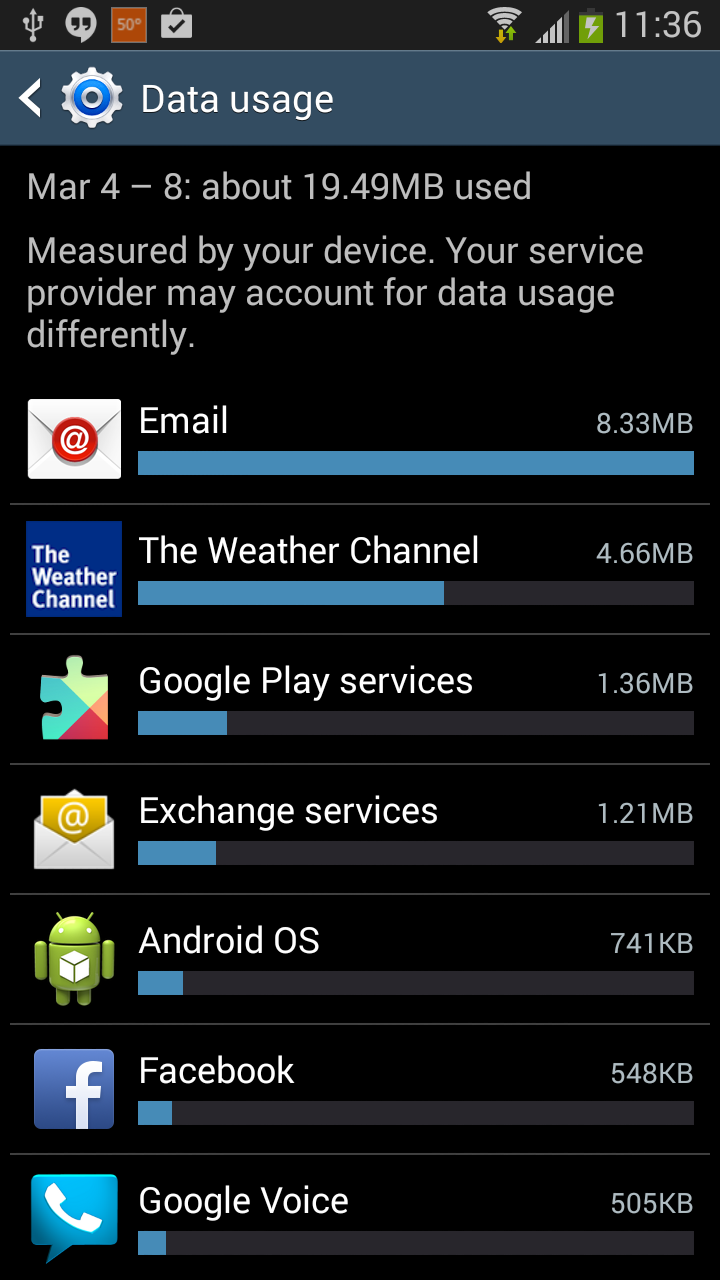
data usage apps
 Apps that use mobile data.
When you mosey on down the Data Usage screen you’ll discover those greedy that apps that vociferously consume mobile data. They’re listed in order of their appetite.
Choose an app to behold specific usage information. Depending on the app, you may also discover some options and settings which help you disable mobile data. Or you can just gleefully kill the app, which may offer temporary data consumption relief, plus it always makes me feel good to touch the Force Stop button.
Incidentally, quite a few apps feature controls that limit their data consumption to Wi-Fi connections only. For example, Dropbox can be directed to sync photos only over a Wi-Fi connection. For non-critical data, such settings are like a can of Febreze next to the cat box.

Avoid using features that consume way too much data

What things can consume way too much data? Try tethering. Want to hog down all your monthly quota in an hour? Set up a Wi-Fi hotspot in an airport. These two features imperil your mobile data plan like a Costco-sized tiramisu endangers a Weight-Watchers convention. Don’t try tethering or create a mobile hotspot unless you have a mobile data plan beefy enough to support them.
Other data monsters include streaming music and videos. If you're going to do a lot of that, make sure you’re Wi-Fi connected. Otherwise, you’ll poke through your monthly data plan’s gigabyte threshold like Godzilla chewing through a Tokyo apartment complex. You wallet will appreciate that disastrous event not happening on a regular basis.